Guide
A duplicate photo finder for Mac that lets you review before anything is removed
Clear out the exact and near-duplicate copies that pile up when folders merge — every match reviewed side by side in Archyv, nothing removed until you say so.
Duplicates are what consolidation leaves behind: a card imported twice because the first import was interrupted, a folder copied to a new drive “just in case”, an export saved back beside its original, one photographer’s contribution overlapping with another’s. Merge a few of those and a library of twelve thousand photos can hold two thousand it does not need — and when the same picture exists in three places, you stop knowing which one is the real one.
Archyv is a Mac app built for exactly this clean-up. It finds the byte-identical copies and the same photo saved at a different size, quality or format, tells a RAW file apart from its own JPEG, and puts every match in front of you side by side before anything is removed. Below: how it decides what is a duplicate, how to run and tune a scan, how the review works — and, at the end, what Finder, Photos and the free finders can and cannot do if you would rather not install anything.
What counts as a duplicate
Three different things get called a duplicate, and they need different treatment.
An exact duplicate is the same file twice — identical bytes, usually under a different name or in a different folder. These are the easy case: any tool that compares sizes and checksums will find them.
A visual duplicate is the same picture saved differently: a JPEG exported from a TIFF, a resized copy made for an email, a re-compressed version that came back from a phone. The files are not identical — not even close, at the byte level — but the photograph is. A checksum will never connect them. Only comparing the pictures themselves does.
Related files are not duplicates at all, and a good tool has to know the difference. A RAW file and the JPEG the camera wrote alongside it are two versions of one exposure, and most photographers keep both on purpose. A duplicate finder that offers DSC_4821.CR3 and DSC_4821.jpg as a pair to thin out is inviting you to delete the master.
Running the scan in Archyv
Select the files — a folder, with its subfolders if you like — and choose Duplicate Detection from the process bar. The scan starts on its own; there is no button to press.
It runs in stages. Stage 1 groups exact duplicates from their metadata: size, date and dimensions. Stage 2 compares the pictures themselves, using perceptual hashing — a fingerprint of what the image looks like rather than of its bytes — so it catches the same photo at a different size, quality or format. A JPEG and a TIFF of one picture are matched; so are a full-size original and the 1200-pixel copy made for a web page. Stage 3 looks for RAW + processed pairs and sets them aside as Related Files rather than duplicates.
Videos are included by default and compared by sampling frames from each one; turn that off in the settings to scan stills only and finish sooner. The whole collection is compared in a single pass with steady memory use, so scanning a few thousand files at once is normal. The log reports each stage as it runs and, at the end, how many groups it found.
One practical note: files in cloud storage should be downloaded and local before you scan. A placeholder that has not been fetched may not be readable for comparison.
Fast, Balanced or Thorough
How strict the visual match is comes from one setting — Detection Accuracy, on the Duplicate Detection settings tab — with three levels rather than a slider.
Fast uses one fingerprinting method and matches leniently: the quickest, and the right first pass over a very large collection. Balanced uses two methods and requires both to agree, which suits most libraries. Thorough uses three and requires two of the three to agree — stricter, so fewer merely similar photos are flagged, which is what you want in an archive where two frames from a burst must not be mistaken for one.
Videos follow the same setting: three sampled frames on Fast, five on Balanced, seven on Thorough.
Two more switches live on the same tab. Include video files is the one above. Detect RAW+JPEG pairs is the one that keeps DSC_4821.CR3 and DSC_4821.jpg labelled Related Files instead of a duplicate to delete — leave it on for any RAW workflow. Settings save automatically and apply to the next scan, so if a run comes back too strict or too loose, adjust and run again.
Reviewing the matches side by side
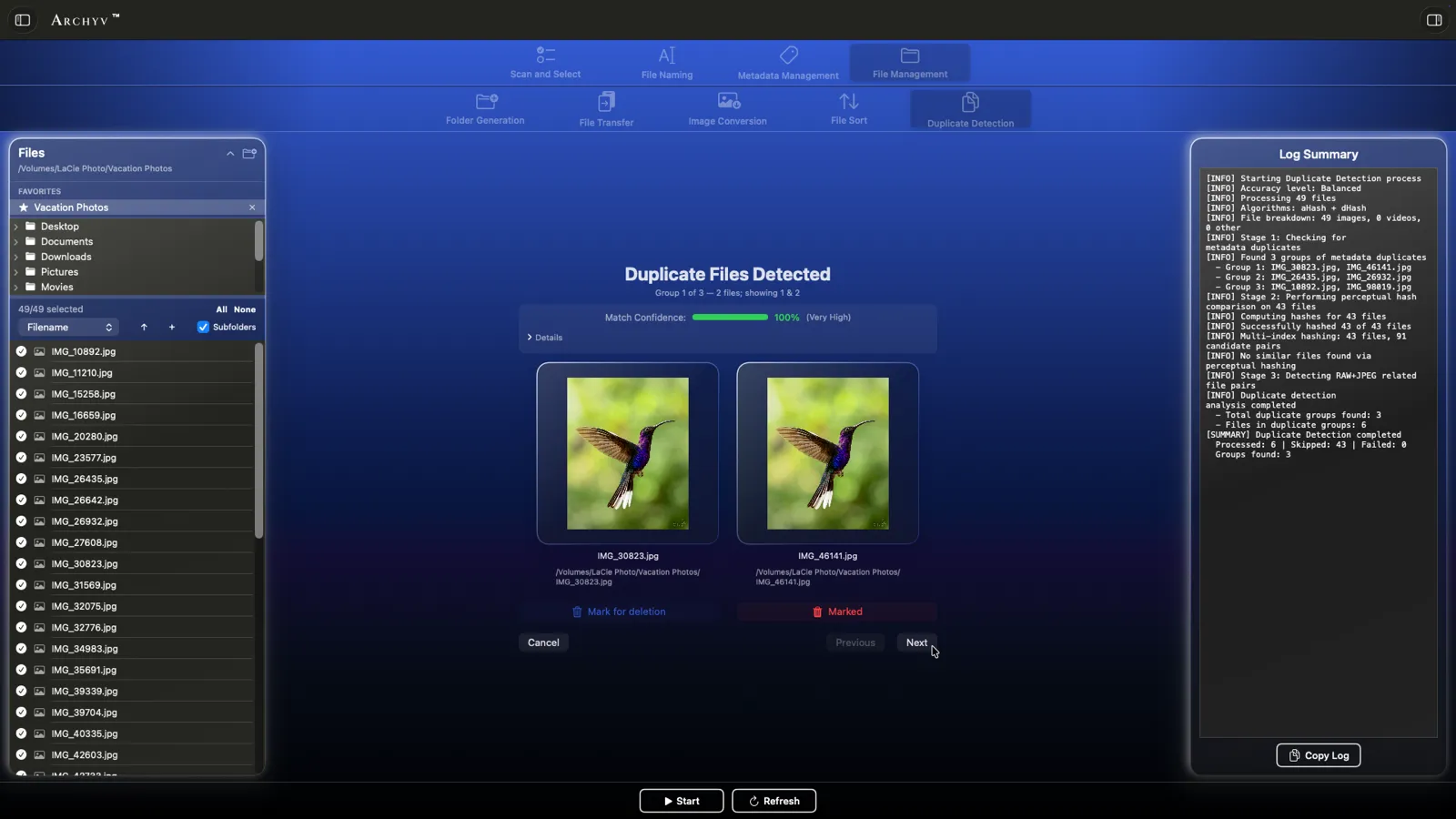
When the analysis finishes, a review window opens with the groups — each labelled Exact Duplicate, Visual Duplicate or Related Files, with a match confidence. You see each pair side by side, with the metadata of both files shown, and move through them with Previous and Next.
For each pair you mark the one image you want removed — at most one per pair, and marking the other clears the first — or leave both unmarked to keep them. Marks accumulate across every pair and group, and you can change any of them right up until you commit. Nothing is deleted while you browse.
Choosing which copy to keep
The review shows you what you need to decide; the decision stays yours. Some things worth weighing:
- Resolution and quality. Between a full-size original and a resized copy, keep the original. The copy can always be made again.
- Format. A TIFF or a RAW is the richer file; a JPEG made from it is a derivative.
- Metadata. Two copies of one photo can carry different keywords, captions or photographer credit — and often the copy that has been worked on is the one carrying the metadata worth keeping. The side-by-side view shows both, so you are not guessing.
- Edit files. A Lightroom or Apple Photos edit file belonging to a photo you delete goes to the Trash with it, and comes back with it if you undo — unless another photo you are keeping still uses it, in which case it stays put.
If you are unsure about a pair, leave it. An unmarked pair costs nothing, and the next scan will show it again.
Removing them — and getting them back
When you have marked everything you want gone, Start removes it all in one batch. Until at least one file is marked, the button stays disabled.
Removed files go to the macOS Trash, not into oblivion: if you change your mind, they are there to put back, and Archyv’s own undo brings a photo and its edit files back together. A marked file that turns out to be protected is skipped and noted in the log rather than deleted, so one locked file never stops the rest of the batch. And if you marked a RAW file or its processed counterpart from a Related Files pair, Archyv asks for one combined confirmation before removing it.
Closing the window — or Cancel, or Escape — finishes without deleting anything. Either way the file list refreshes, and the log keeps both the groups it found and, after a delete, the list of what was removed.
Where Finder, Photos and the free finders stop
If you would rather try the built-in tools first, here is what each one covers.
Finder has no duplicate finder. A Smart Folder can group files by name or size, which catches the copies that kept their name and misses every one that was renamed, resized or re-saved. Apple Photos gained a Duplicates album in macOS Ventura, and it works well — inside the Photos library only. Files living in folders on a drive are invisible to it, and its merge keeps everything inside the library, the opposite of what you want when the archive is a folder tree.
Checksum-based finders, whether a Terminal tool or a free app, find exact copies reliably, and only exact copies. Dedicated finders with a similarity mode are the closest category to Archyv, and before trusting one with a library, check three things: whether it tells a RAW file from its own JPEG, whether it lets you compare the metadata of two copies before choosing, and whether removal goes to the Trash or straight past it. A finder is only as safe as the review step it gives you — which is the part Archyv was built around.
Next: the Duplicate Detection reference covers the scan and the review window in full, and Duplicate Detection settings covers the accuracy levels. If your library mixes RAW files with their JPEGs, RAW + JPEG pairs and XMP sidecars explains what travels together. Once the copies are gone, sort what remains into folders by date.